 CASIE Help: Update Search


Update Search
 Status
History
Planning
Disk Chores
Printer
Other Status
History
Planning
Disk Chores
Printer
Other
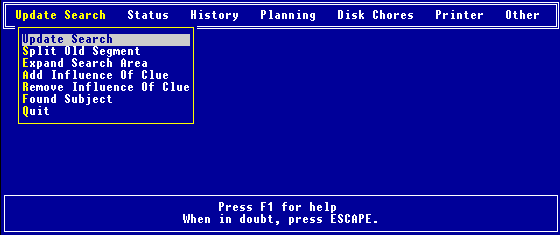
Searches are updated here. In particular, this is where:
The results of searching a particular segment are entered.
An existing segment is split.
New segments are added.
The influence of clues are added or removed.
Details of a subject find are entered.
| |
|
UPDATE SEARCH
Update Search |
This is where existing search segments are updated, after the segment has been searched. You will be expected to supply five things.
| 1. | The type of resource used (optional). |
| 2. | The POD as a % (i.e. how well the resource searched the segment). |
| 3. | The date of the search (optional). |
| 4. | The operational period (optional). |
| 5. | A cross reference to any paperwork (optional). |
| |
|
UPDATE SEARCH
Split Old Segment |
This is where you can split an existing search segment into multiple search segments. There are four things you must supply before splitting a search segment.
| 1. | The identifying number of the search segment you want to split. |
| 2. | The total number of segments into which it is to be split. |
| 3. | Whether each new segment is equally likely or not, and, if not, the relative weight to assign that segment. |
| 4. | A new search filename to use from here on. It should be different from the current search filename. If the old filename ends with a number between 00 and 98, the computer automatically bumps the filename number by one. You can always go back to the old file later, if a mistake is made. |
Finally you should be prepared to enter on your map the identifying numbers, supplied by the computer, for these new search segments.
| |
|
UPDATE SEARCH
Expand Search Area |
This is where you can add part of the rest of the world (R.O.W.) to your existing search area. There are three things you must supply to add new segments to your search area.
| 1. | The total number of segments to be added. |
| 2. | Whether each new segment (and what will be left of the rest of the world) is equally likely or not, and, if not, the relative weights to assign the segments. |
| 3. | A new search filename to use from here on. It should be different from the current search filename. If the old filename ends with a number between 00 and 98, the computer automatically bumps the filename number by one. You can always go back to the old file later, if a mistake is made. |
Finally you must enter the identifying numbers, supplied by the computer, on your map for these new search segments.
| |
|
UPDATE SEARCH
Add Influence Of Clue |
This is where you can add the influence of a clue. There are two things to do. First, taking the attitude that the clue is completetly authentic, you must decide how significant the clue is for each of the search segments, and for the R.O.W., according to the following table.
| A | - clue strongly suggests subject is in this segment |
| B | |
| C | - clue suggests subject is in this segment |
| D | |
| E | - clue suggests nothing about the subject being in or out of this segment |
| F | |
| G | - clue suggests subject is not in this segment |
| H | |
| I | - clue strongly suggests subject is not in this segment |
Second, you must decide how authentic you think the clue actually is. Your choices are:
Almost surely authentic
Probably authentic
Even chance authentic/not authentic
Probably not authentic
Almost surely not authentic.
The existing POAs are then updated to reflect this information. This information is also written to the file TRAIL.DOC, which can be read by selecting the Audit Trail option under the History menu. If this clue turns out to be unrelated to the subject, it can be removed later by selecting the
Remove Clue option, assuming the number of search segments has not changed.
| |
|
UPDATE SEARCH
Remove Influence Of Clue |
This is where you can remove the influence of a previously added clue, assuming the number of search segments is unchanged. Note, the computer does not check whether the clue had indeed been added previously.
Go to the Audit Trail to see how significant the clue to be removed was, when it was added. Make a note of the letters (A through I) for each of the search segments and the R.O.W., and how authentic (almost surely, probably, even chance, probably not, almost surely not) the clue was rated. Then, under the Remove Clue option, enter exactly this information for each of the search segments and the R.O.W., as well as for the authenticity. This will completely reverse the effect of the previously added clue.
This information is also written to the file TRAIL.DOC, which can be read by selecting the Audit Trail option under the History menu.
| |
|
UPDATE SEARCH
Found Subject |
This is where you can insert details of the subject find. You will be asked for the subject's name, condition, and location, as well as the date and time of the find, the finder, and the means of evacuation.
This information is then written to the file TRAIL.DOC, which can be read by selecting the Audit Trail option under the History menu.
If you need help with this, our country is in bigger trouble than I thought!
|